01 / The Casebook / Developer tools · Cross-device
DevLink
Designing continuity into a cross-device AI development environment.
A connected development environment that pairs a desktop host with a phone, keeps projects, agents and previews in reach, and lets developers keep working when the computer drops offline.
- Role
- Independent Product Designer
- Category
- Developer tools · Cross-device
- Status
- Concept
- Year
- 2026
01 / Context
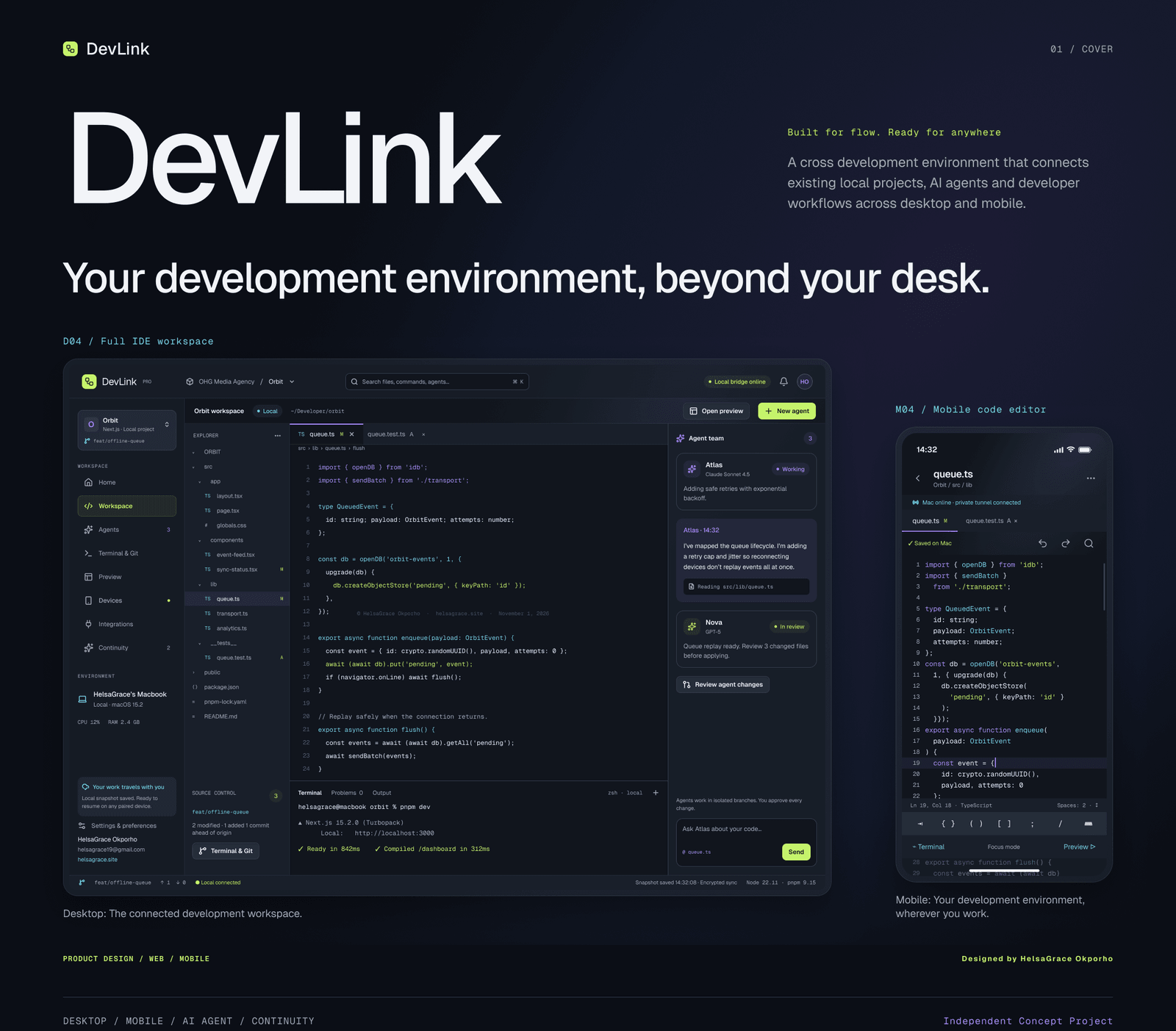
Your development environment, beyond your desk.
DevLink is an independent product design concept for a connected development environment. It pairs a developer’s existing local project on a desktop host with a mobile companion, so the same workspace can be reached, reviewed and directed from another device.
The concept was designed as one product across two surfaces: a desktop IDE for focused work, and a phone interface for project access, agent instructions, previews and continuity when the computer is unavailable.
It is a static design study, not a built or commercially launched product. The screens describe intended behaviour and technical states.
- Independent product design concept · 2026
- Solo — product thinking, UX architecture, interface design, design system and case study
- Desktop host + mobile companion + continuity layer
- Static design study — not a wired prototype or shipped product
02 / The problem
Your work shouldn’t be tied to one screen.
Working on a local project is straightforward until you step away from the computer. Forwarding a development port, reaching a running preview or directing an AI agent remotely can each introduce extra configuration and steps.
The tools exist, but the experience is fragmented: one surface for the editor, another for remote access, another for agents. The developer carries the continuity in their head.
The design question became: what would it take to keep the project, its context and the next action available without pretending the phone is a desktop?
“I didn’t want another way to monitor my computer. I wanted a way to continue working without being tied to it.”
03 / Research & discovery
The tools exist. But the workflow is still fragmented.
I compared the existing approaches: VS Code Remote Tunnels for secure access, GitHub Codespaces for cloud-hosted environments, Replit for browser-based development, and mobile editors for code on the go.
Each solved a different part of the workflow. Remote access still treated the phone as a viewer; cloud environments required moving the project; mobile editors lost the host context; AI agents often sat outside the workspace.
The opportunity was not another code editor. It was continuity: one connected system around the developer’s existing project, with desktop and mobile designed together.
- Desk research and personal experience with local development projects
- Compared VS Code Remote Tunnels, GitHub Codespaces, Replit and mobile editors
- Opportunity: continuity across devices, not another isolated tool
03 / Research & discovery
What the landscape left open.
Four approaches, four different gaps.
- 01
Remote tunnels
Secure access to a remote machine, but remote access remains separate from the project workflow.
- 02
Cloud workspaces
A capable environment in the browser, but the project has to move into the cloud.
- 03
Mobile editors
Code on a phone, but limited connection to the desktop host and its running context.
- 04
AI coding agents
Useful assistance, but often outside the place where the code, terminal and preview live.
04 / Product strategy
One connected workspace. Two ways to work.
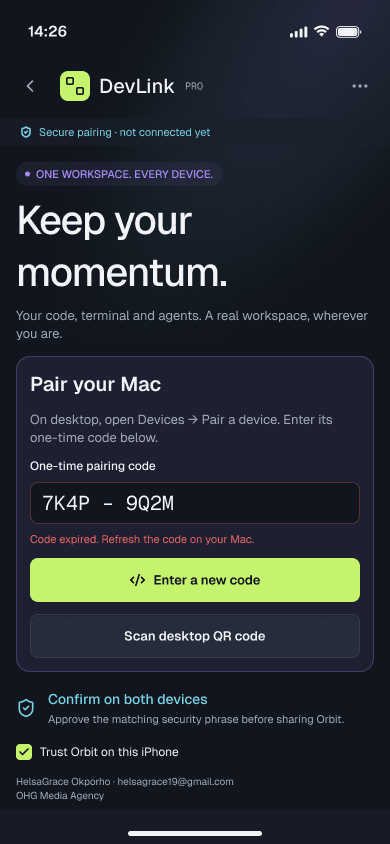
DevLink is built around three connected environments: the desktop host, the mobile companion and the continuity layer. Each has a clear responsibility, but they share project context, device connections and task states.
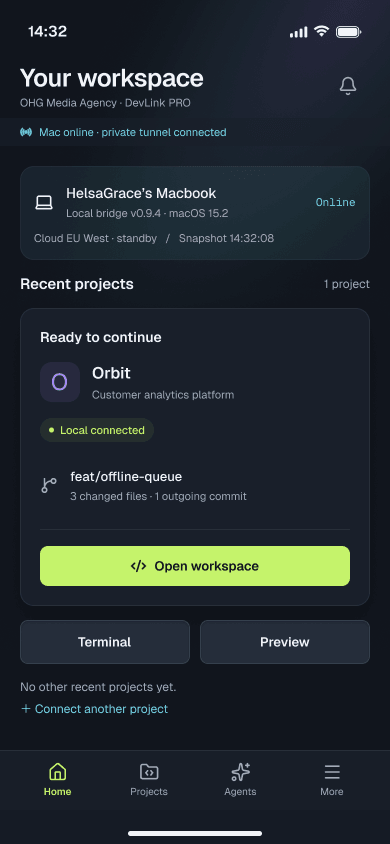
The desktop is the full workspace: editor, terminal, preview, ports and agents. The phone is a focused companion: projects, files, code, terminal, preview and agent review. The continuity layer preserves the latest safe project snapshot, queues supported work and holds remote-dependent instructions until the host returns.
- Desktop host — workspace, terminal and Git, preview and ports
- Private paired-device tunnel — connection, scope and session state
- Mobile companion — projects, editor, agents, queue, devices and settings
04 / Product strategy
Three environments, one shared context.
Desktop host
Workspace · terminal · preview
Paired-device tunnel
Connection · scope · session
Mobile companion
Projects · editor · agents
Continuity layer
Snapshot · queue · reconciliation
The phone never pretends to execute locally. Remote-dependent actions remain paused until the host is available.
05 / The interface
One project. Two deliberate hierarchies.
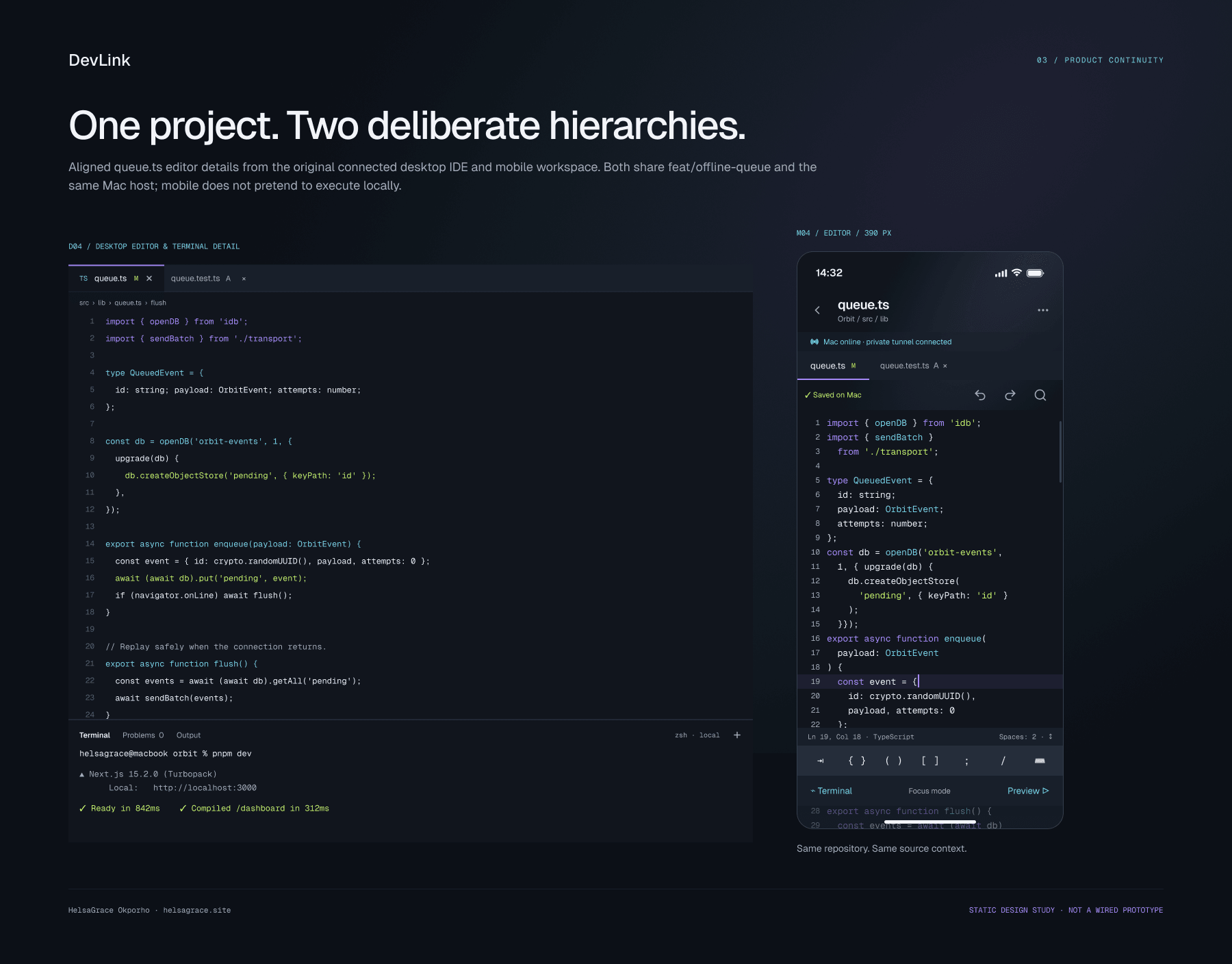
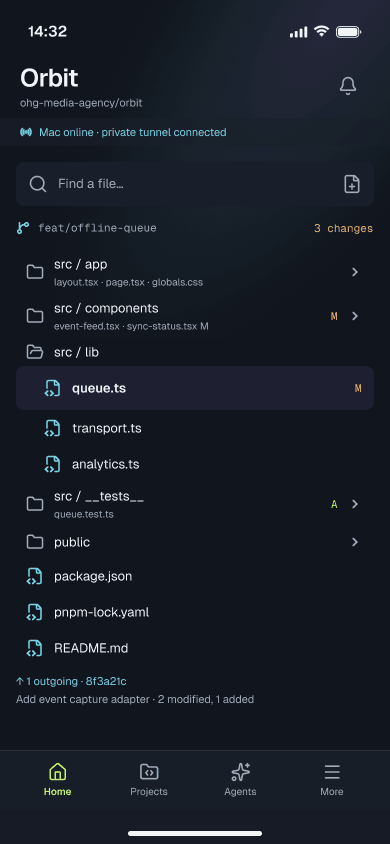
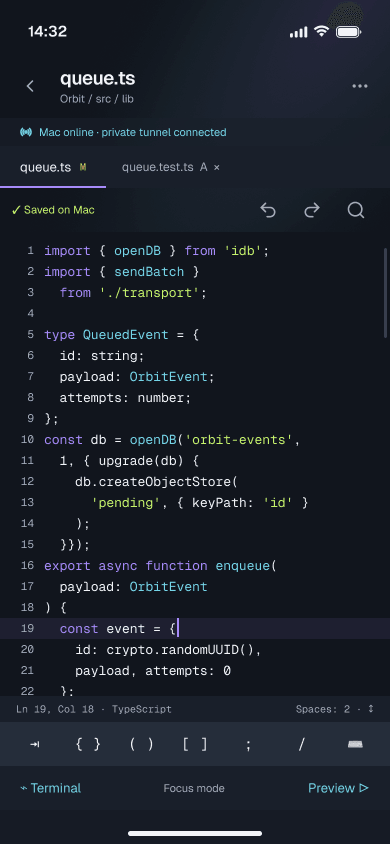
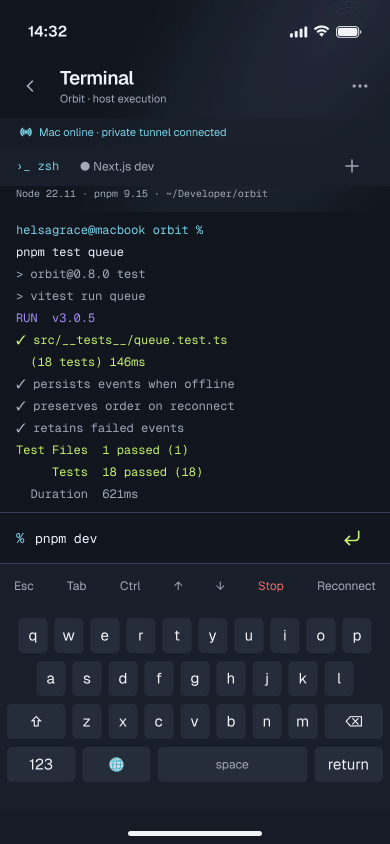
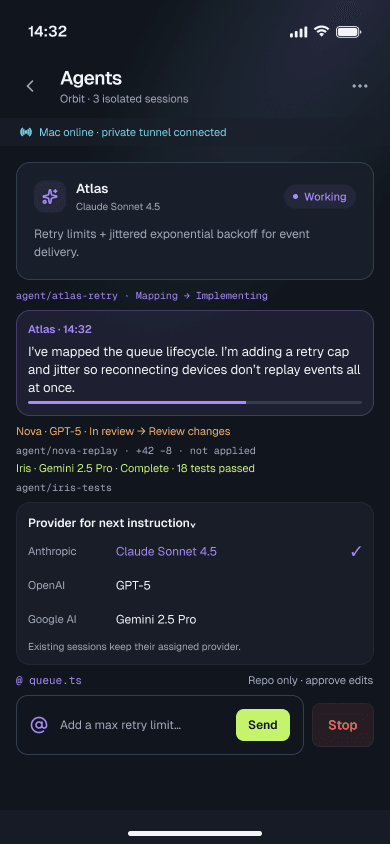
The desktop host is the full worksurface: editor, terminal, preview, ports and the agent team in one landscape. The phone is not a shrunken copy — it is a focused companion with its own hierarchy for the same project context.
Both surfaces share the same repository, source context and agent state. The difference is deliberate: the desktop supports breadth, while the phone supports the next decision.
05 / The interface
A familiar development workflow, without the boundaries.
05 / The interface
The desktop workspace, in full.
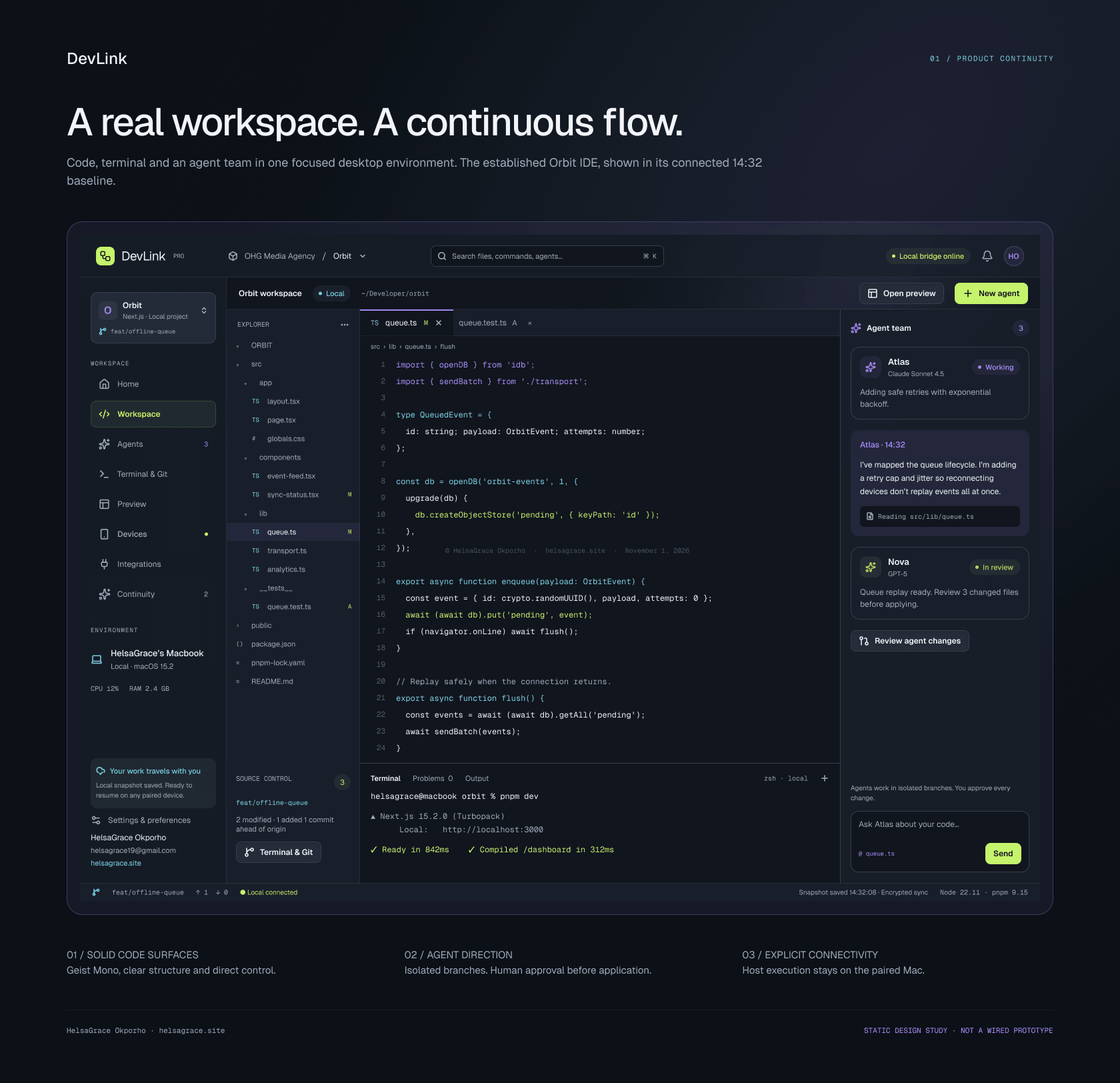
The desktop experience is designed as a complete development environment: project explorer, editor, terminal, running preview, source control, device management and the agent team in one window.
Connectivity is always visible — the local bridge, the paired host and the host’s execution state — so the developer knows where the workspace is actually running.
05 / The interface
See the product. Keep the boundary.
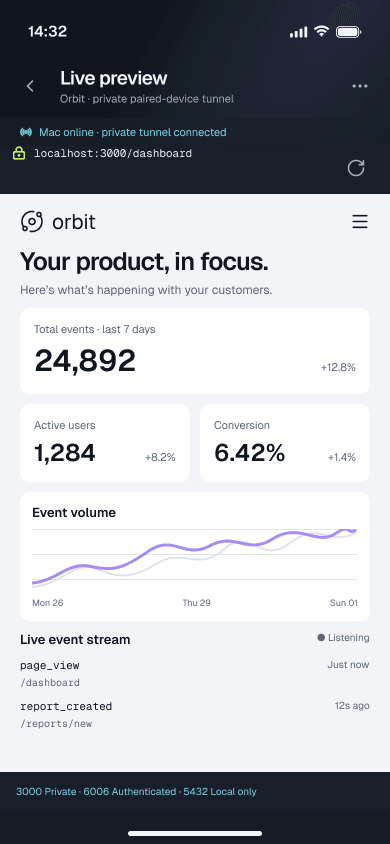
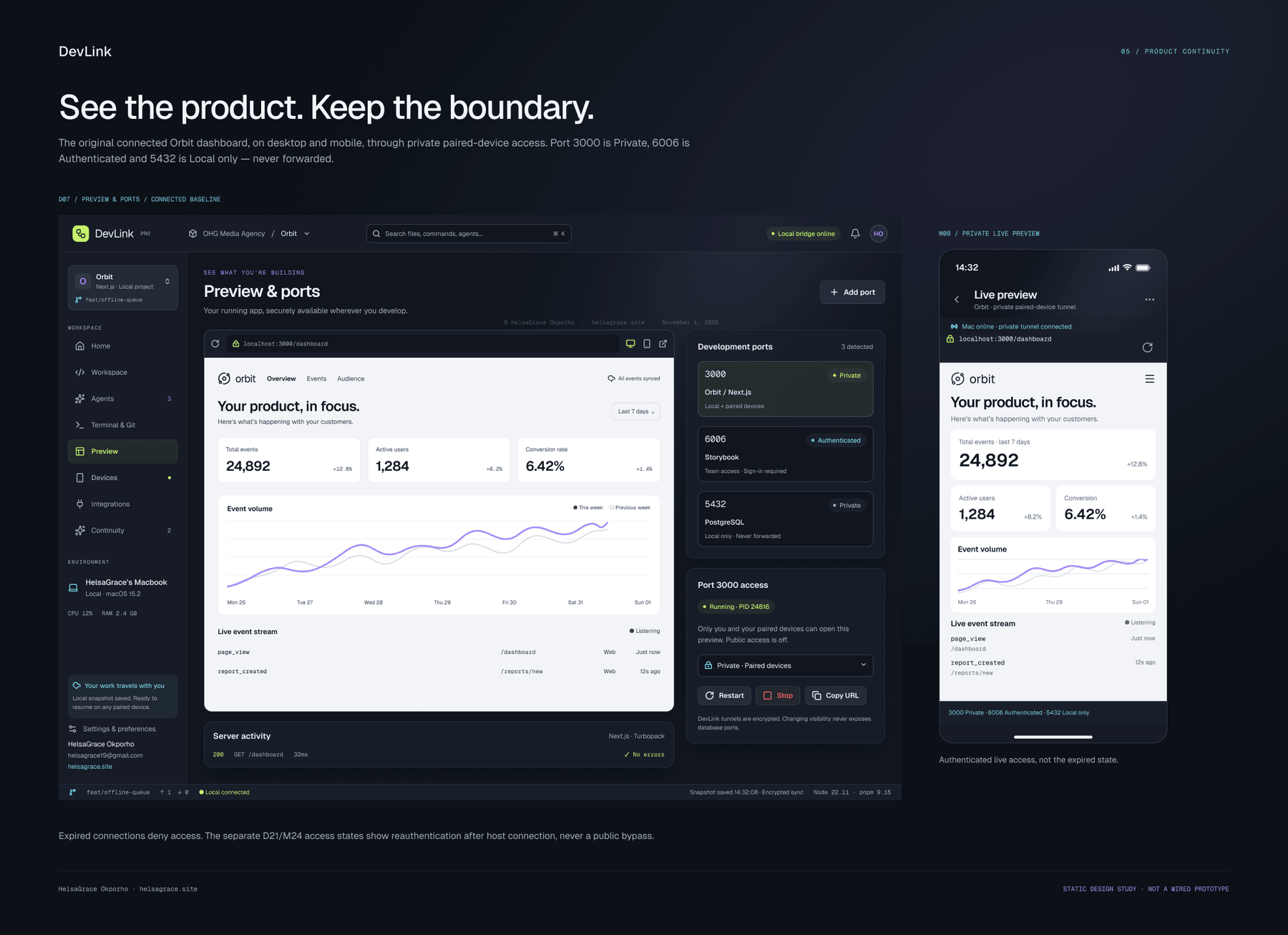
A running preview is available on both surfaces, but access stays scoped: one port is private to paired devices, another requires authentication, and a third is local only. The mobile view mirrors the live application without exposing it publicly.
That was a deliberate product decision. Convenience should not require making a development server public.
06 / AI orchestration
An intelligent layer built into the workflow, not bolted on.
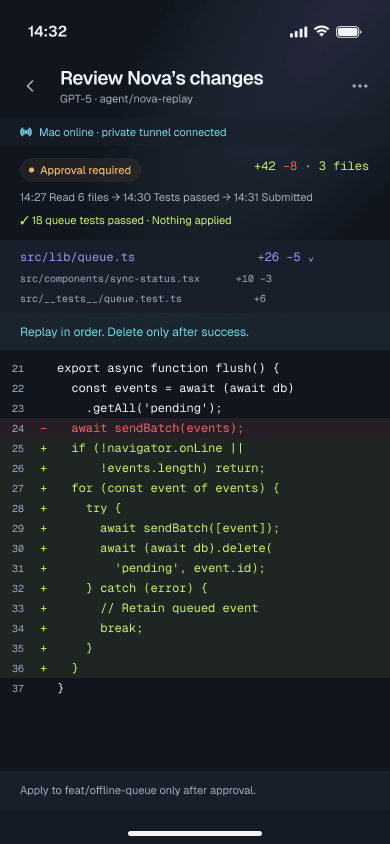
Agents operate inside the project workspace, with awareness of the current file, terminal state and open tasks. Developers can send instructions, choose a provider, watch progress, review a file-level diff and approve what gets applied.
DevLink is designed around a provider-flexible agent model. The interface separates instruction, scope, execution and approval so the developer keeps the final say.
06 / AI orchestration
Instructions, scope, execution, approval.
Each step is a deliberate checkpoint, not a single send button.
- 01
Instructions & context
Attach the task to the current project and file context.
- 02
Provider selection
Choose the agent and model that fit the task.
- 03
Progress
See what the agent is reading, changing and testing.
- 04
Diff review
Inspect file-level changes before anything is applied.
- 05
Approval
Approve the scope and apply the change explicitly.
06 / AI orchestration
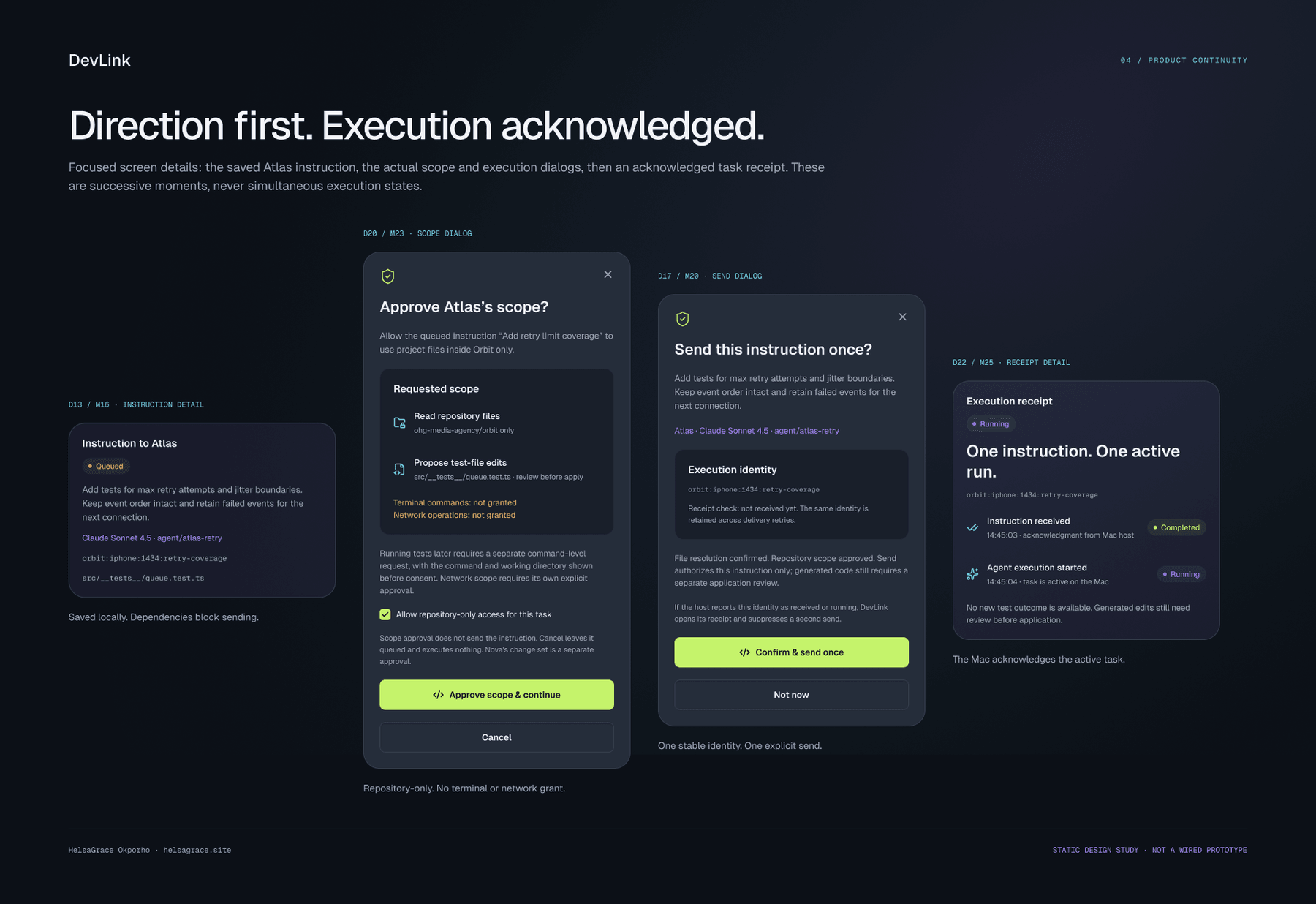
Direction first. Execution acknowledged.
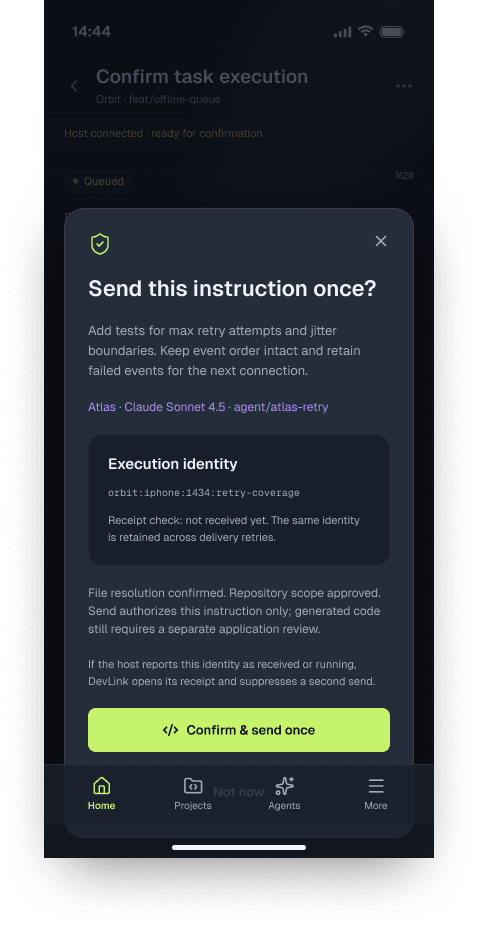
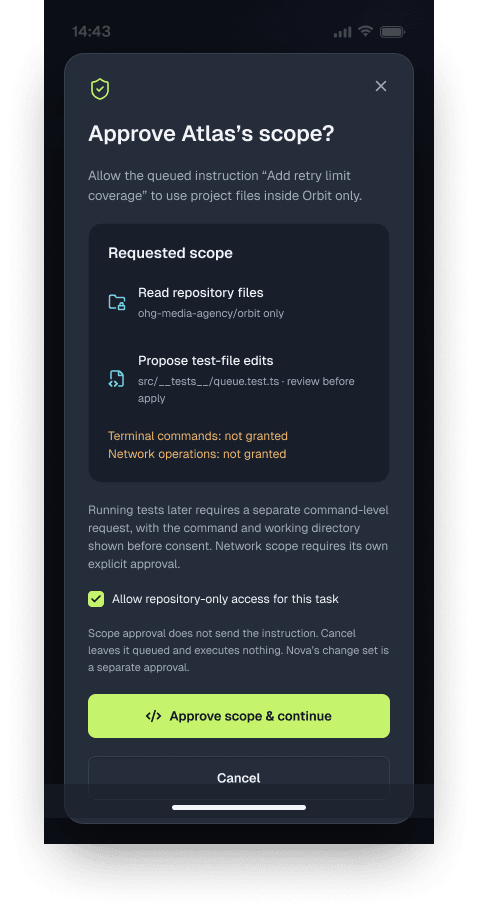
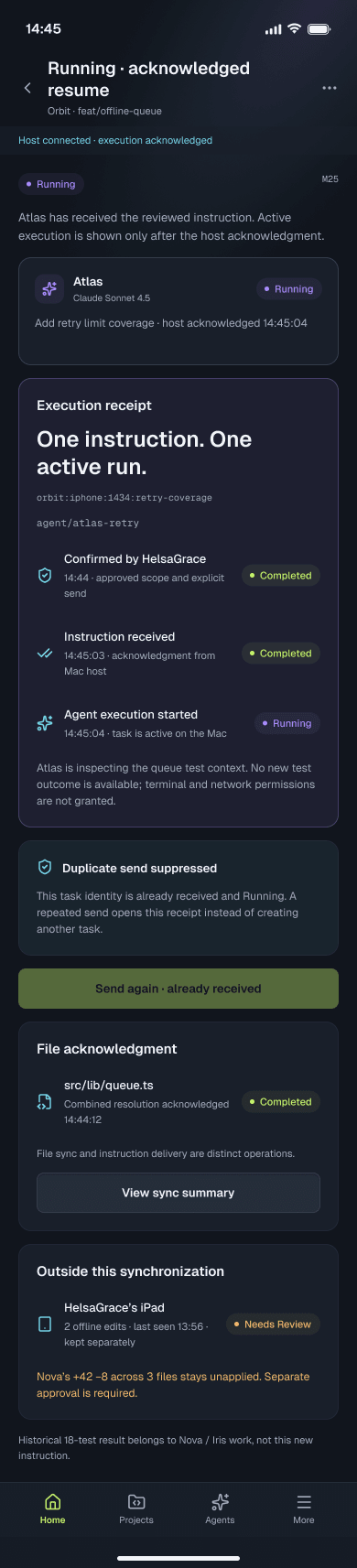
The agent flow is split into deliberate moments: an instruction is saved, its repository scope is approved, execution is confirmed once, and the host acknowledges a single active run.
That separation is the point. Approval is not execution, and a running task is not a completed one. The interface keeps each state visible instead of collapsing them into a single success message.
07 / Continuity engine
When the host goes offline, your work doesn’t have to.
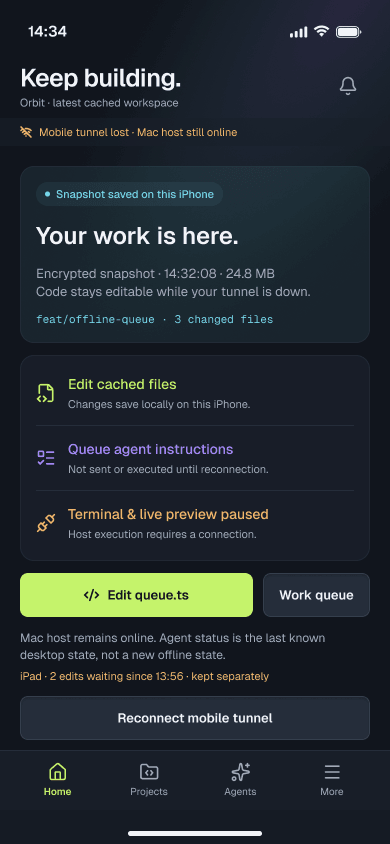
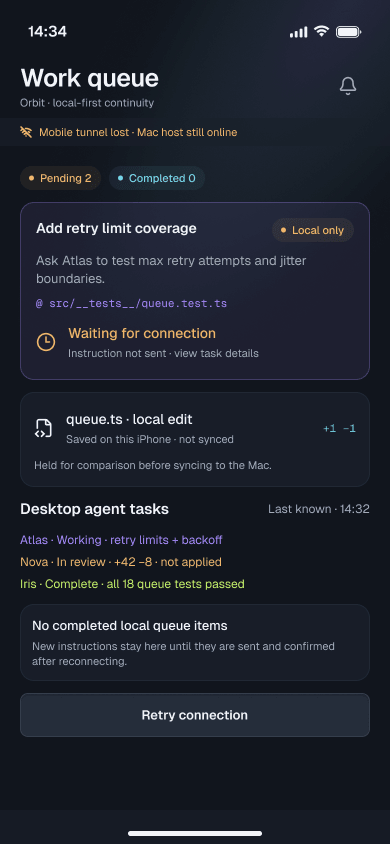
A disconnected computer shouldn’t mean losing access to the workspace or abandoning unfinished tasks. DevLink preserves a recent safe project snapshot, allows supported local work to continue and holds remote-dependent instructions until the host reconnects.
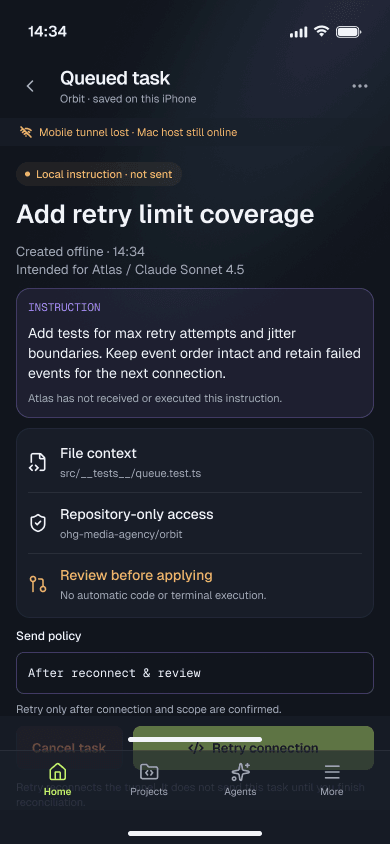
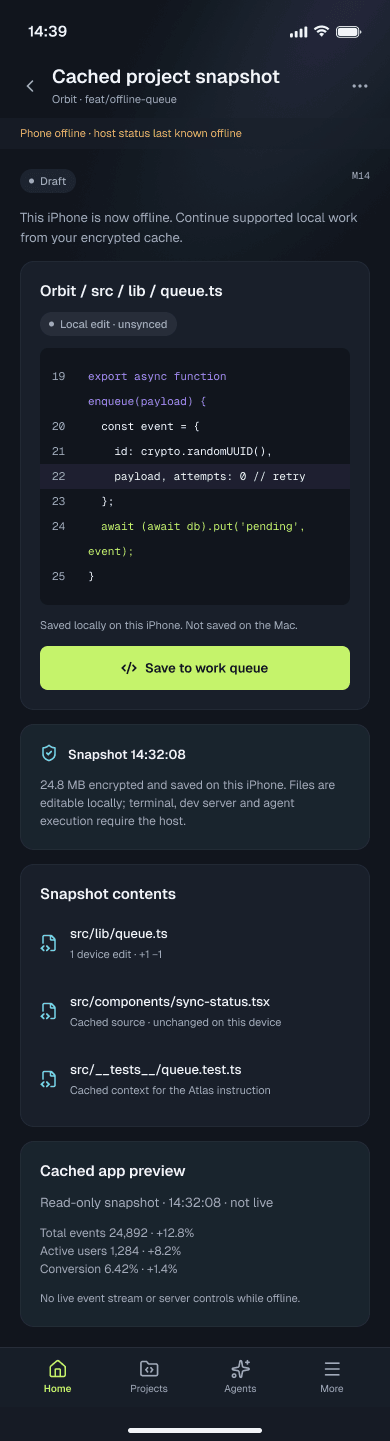
The model separates four kinds of state: what is cached, what is queued, what is pending approval and what is running. The interface names each one so the developer can tell the difference between saved work, deferred work and work that has actually executed.
07 / Continuity engine
Disconnect to sync, without silent overwrites.
Each transition is explicit.
- 01
Disconnect
Pause remote-dependent execution and keep the last safe project state available.
- 02
Cached project
Open a read-only snapshot of the project on the phone.
- 03
Queued work
Retain edits and agent instructions locally, with their project context.
- 04
Pending task
Show what is saved, what is waiting and what still needs a connection.
- 05
Reconnect
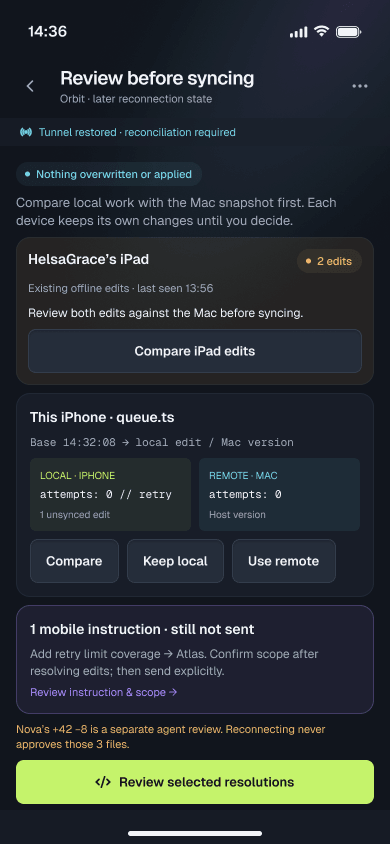
Check the host, the device and the project before restoring the workspace.
- 06
Compare & resolve
Compare base, device and host versions, then resolve file-level conflicts.
- 07
Approve scope
Review the agent’s requested repository scope before execution.
- 08
Confirm & sync
Send the instruction explicitly, then follow the running task to a confirmed receipt.
07 / Continuity engine
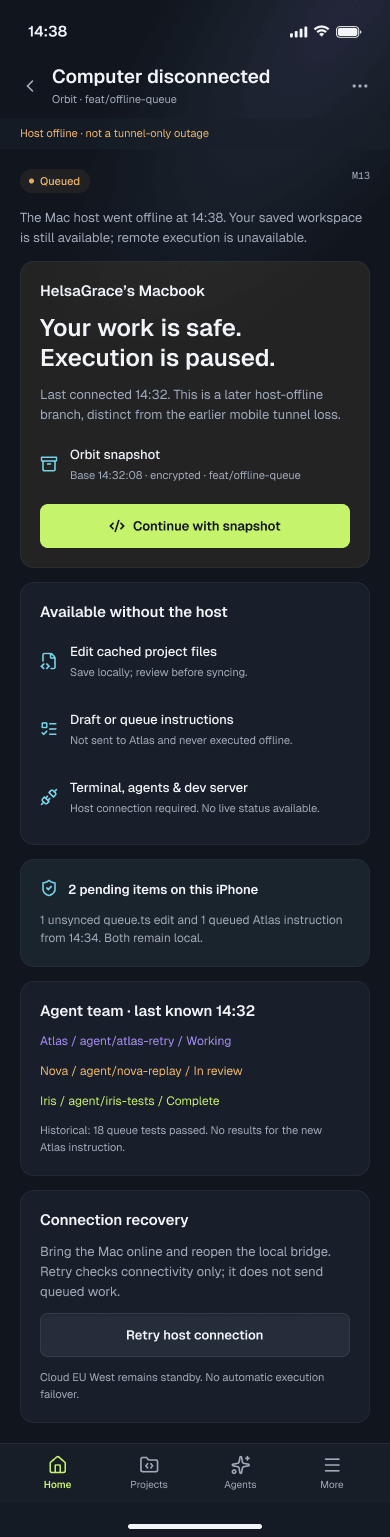
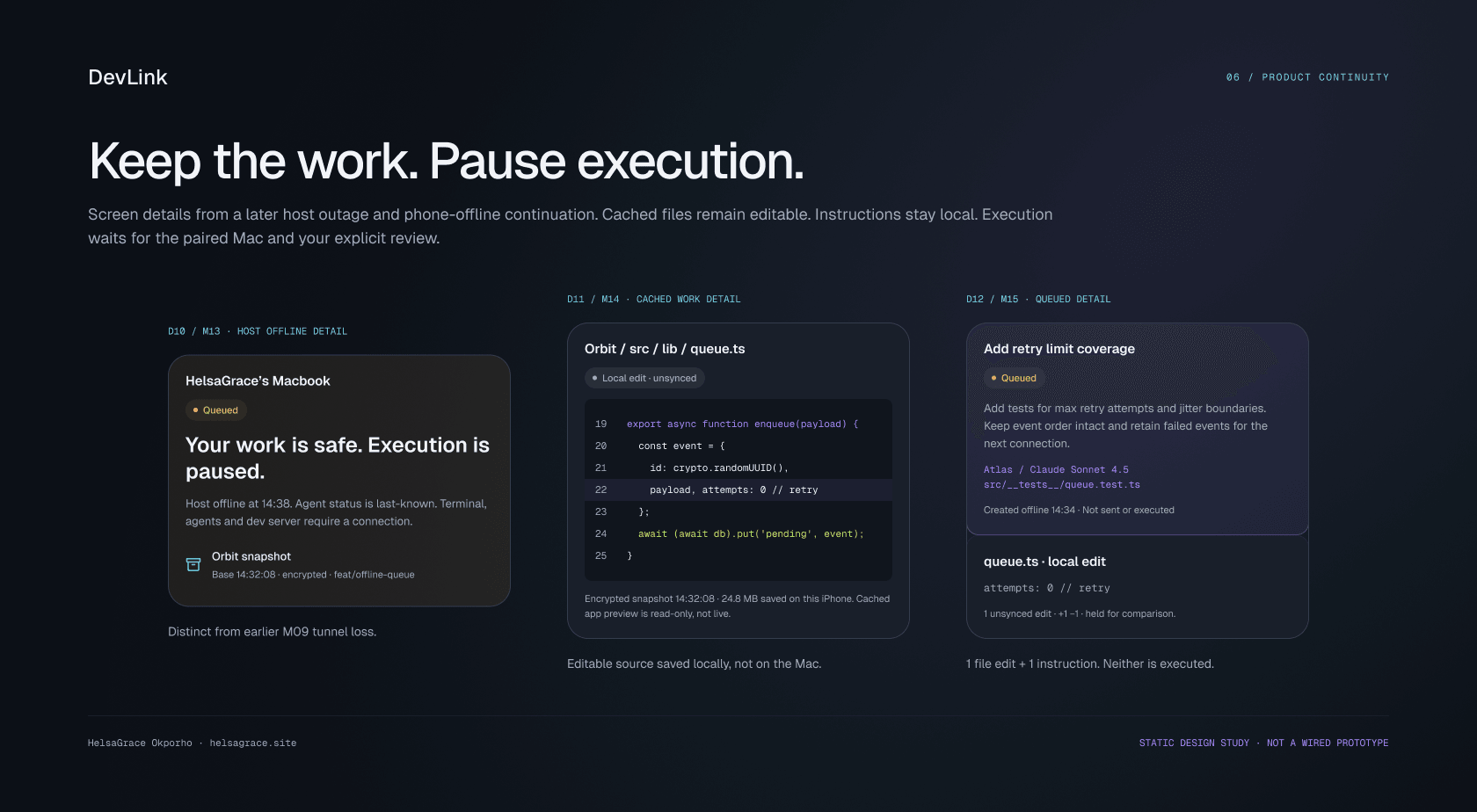
Keep the work. Pause execution.
When the host drops offline, the phone keeps an encrypted snapshot, the cached files stay readable and supported edits remain local. What stops is execution: terminal commands, agents and the dev server still need the host.
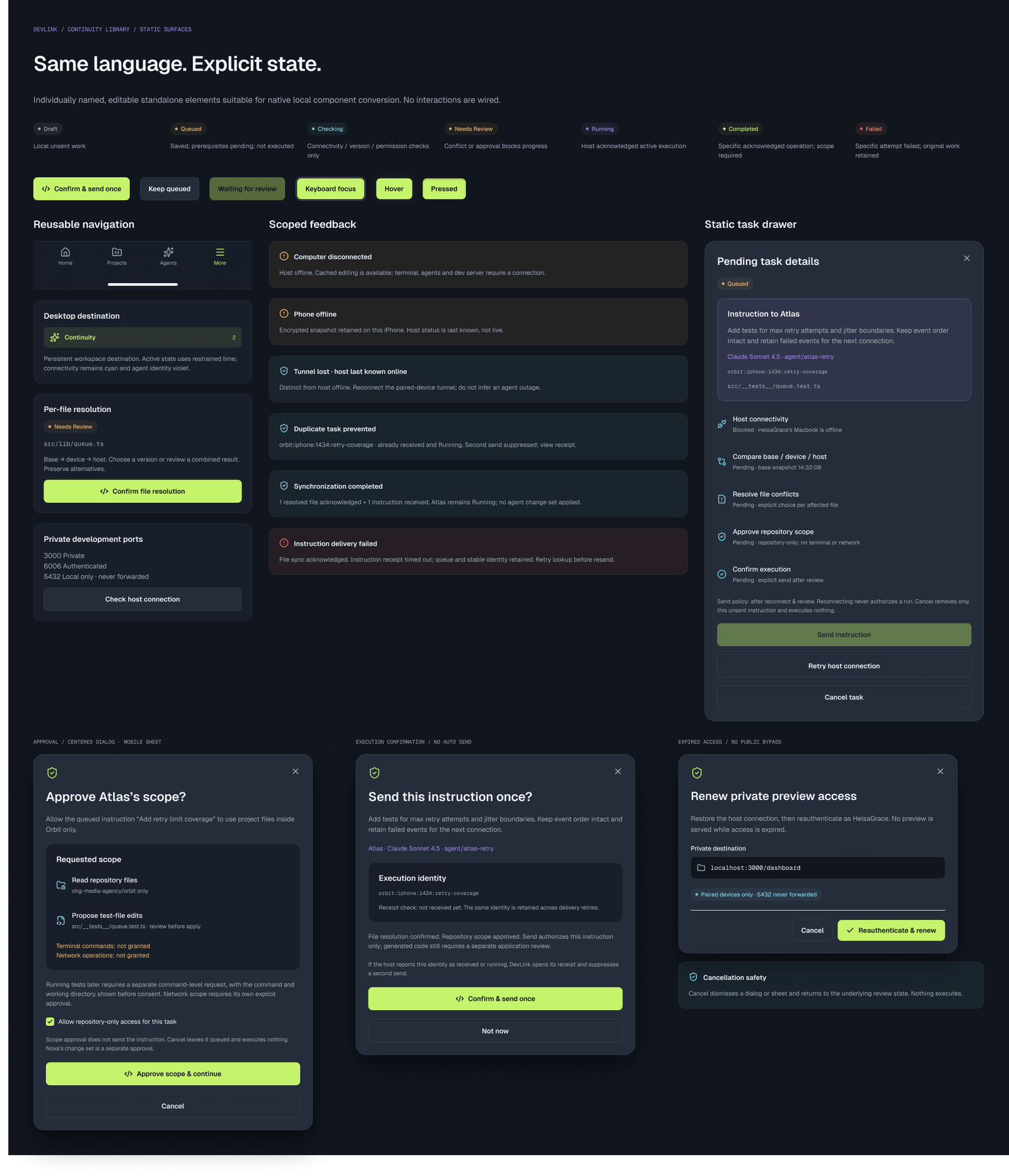
The screen language names that difference directly — queued, cached, unsynced and paused — so saved work is never mistaken for work that has run.
07 / Continuity engine
The states that keep the work honest.
07 / Continuity engine
Approval, sync and the states in between.
07 / Continuity engine
Reconnect without rewriting the story.
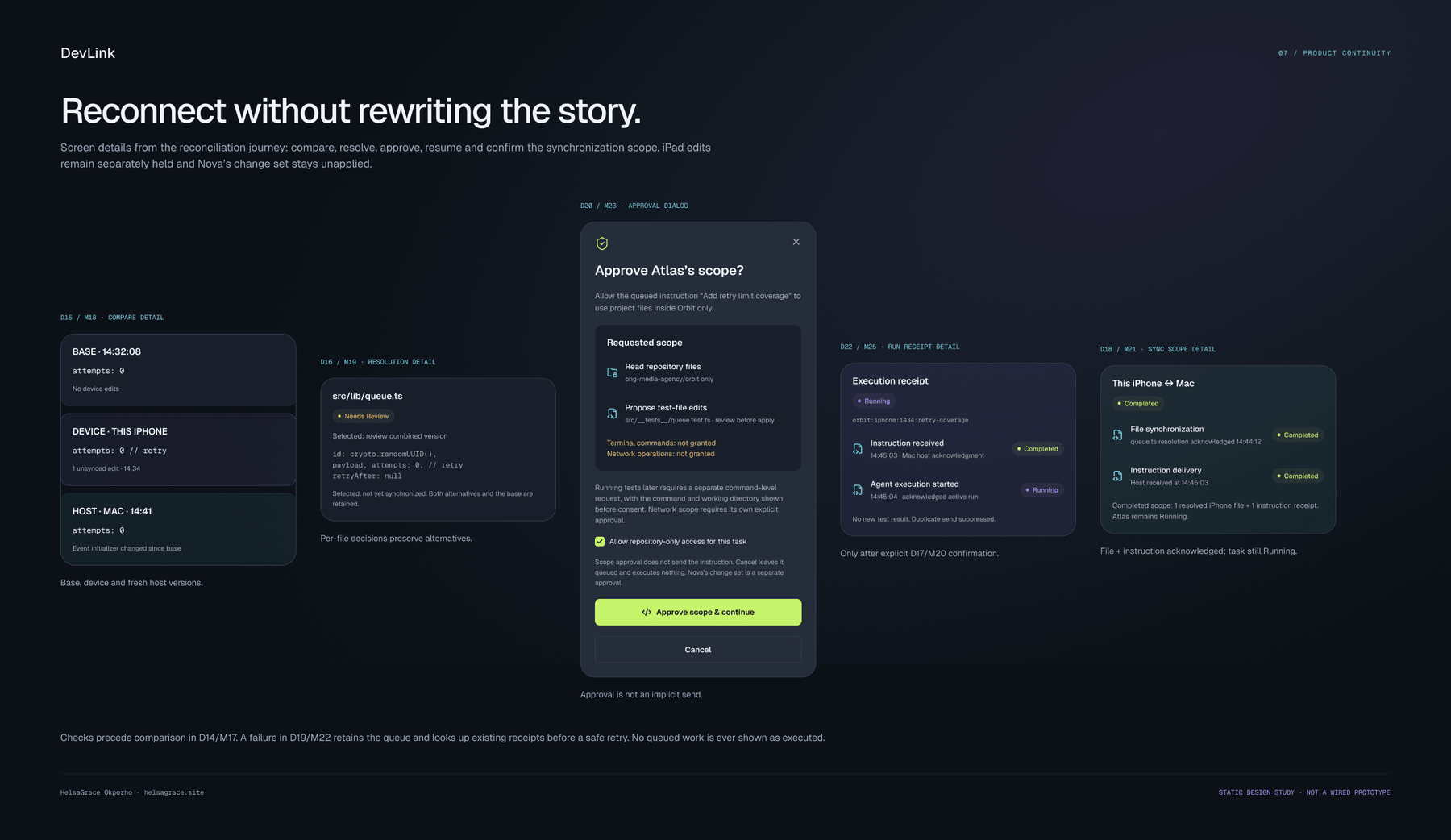
Reconnection is treated as a reconciliation, not a sync button. The interface compares base, device and host versions, resolves file-level conflicts, then asks for approval and a single send before anything runs.
The sequence preserves alternatives instead of silently overwriting them. A conflict is a decision to be made, not an error to be hidden.
08 / Visual system
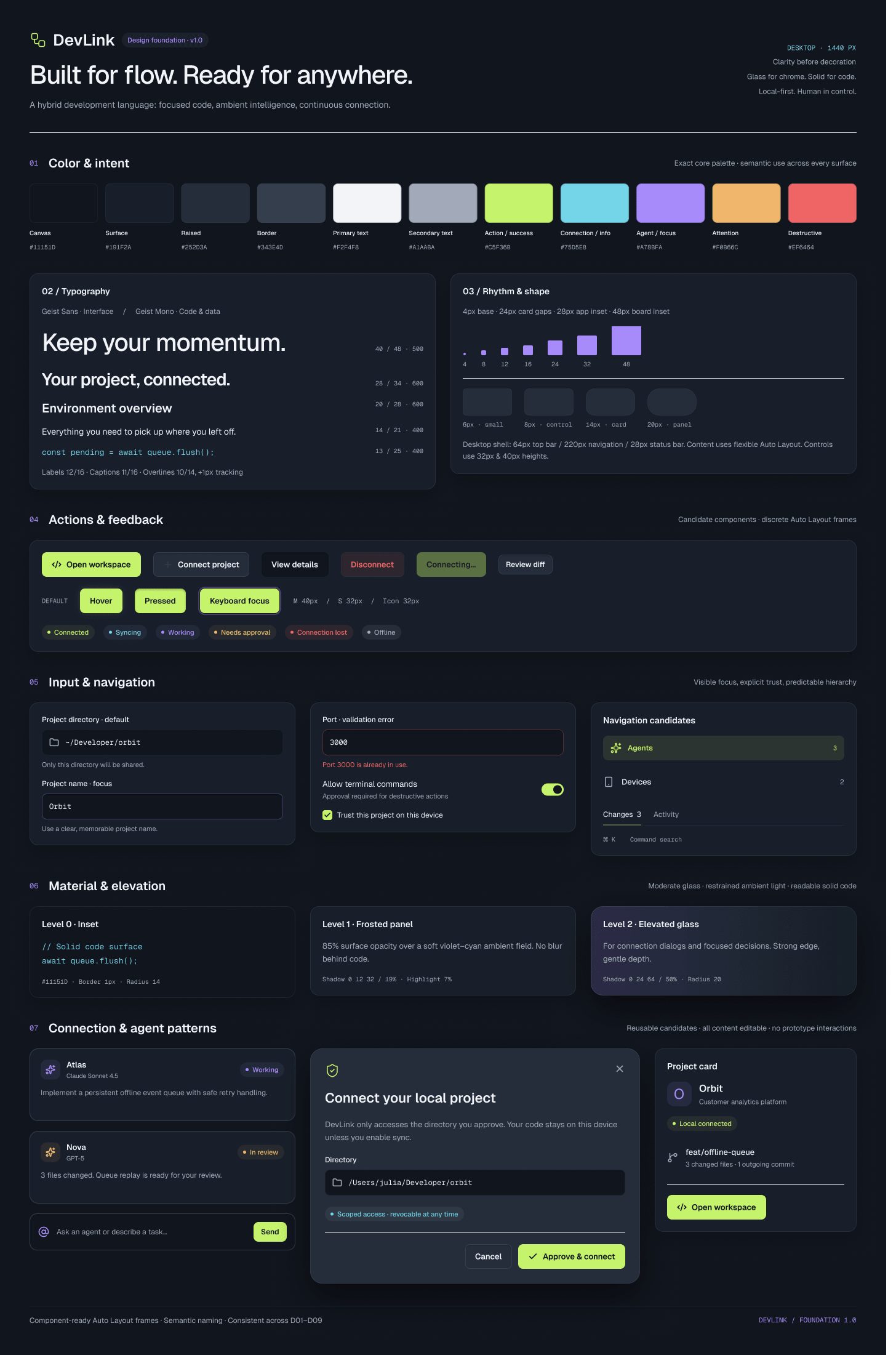
A visual language built for focus, depth and control.
The interface should feel like a modern development environment without sacrificing readability or the precision developers expect from their tools.
Canvas
#11151D
Application background
Surface
#191F2A
Panels and cards
Raised
#252D3A
Elevated surfaces
Border
#343E4D
Structure and separation
Primary text
#F2F4F8
Primary reading
Secondary text
#A1AABA
Supporting copy
Action
#C6F24E
Primary action
Connection
#5CC8E8
Connectivity
Agent
#A78BFA
AI-related states
Attention
#F0B65C
Warnings
Destructive
#EF6464
Destructive states
Typography
Geist Sans
Geist Mono
Geist Sans carries the interface. Geist Mono carries code, terminal output, file paths and technical metadata.
Components
- Status languageReserved colours and consistent labels distinguish connected, working, queued, needs review, completed and failed.
- Actions & feedbackButtons, inputs and state indicators share one visual grammar across desktop and mobile.
- Hybrid glassmorphismRestrained glass panels sit over solid surfaces so depth clarifies hierarchy without making the workspace decorative.
08 / Visual system
The system, not just the screens.
09 / Reflection
Designing for the moments when everything doesn’t go to plan.
The most valuable work in DevLink was not the happy path. It was the interruption: the host that goes offline, the instruction that cannot be confirmed, the file that changed in two places, the agent that needs permission before it acts.
The concept treats continuity as a product surface, not an error state. That means naming what is saved, what is waiting and what has actually run — and never letting a cached view pass as live.
Offline as a first-class state
The phone can keep context and supported local work, but remote execution stays paused.
Approval before execution
Scope and send are separate decisions, so permission is never mistaken for execution.
Honest limits
A static design study can show the logic, but secure remote connectivity, local project access and reliable execution need engineering validation.
10 / What’s next
From connected concept to working development environment.
The next step is to move beyond the static study: validate the connected workflow with developers who work across devices, then build the core host and pairing experience.
- Build the desktop host and mobile pairing experience.
- Validate port forwarding, local preview access and offline reconciliation with developers.
- Expand the provider ecosystem and strengthen multi-agent orchestration.
- Test the distinction between cached, queued, pending and running states.
“The future of development shouldn’t be tied to a single device.”